Grok Bot · Tutorial 05
How Grok Bot's Cloud Computer Works
Watch, take over, and safely manage the one persistent cloud computer shared by all Bots on your account.
0 of 14 complete
Last tested and updated: August 2026
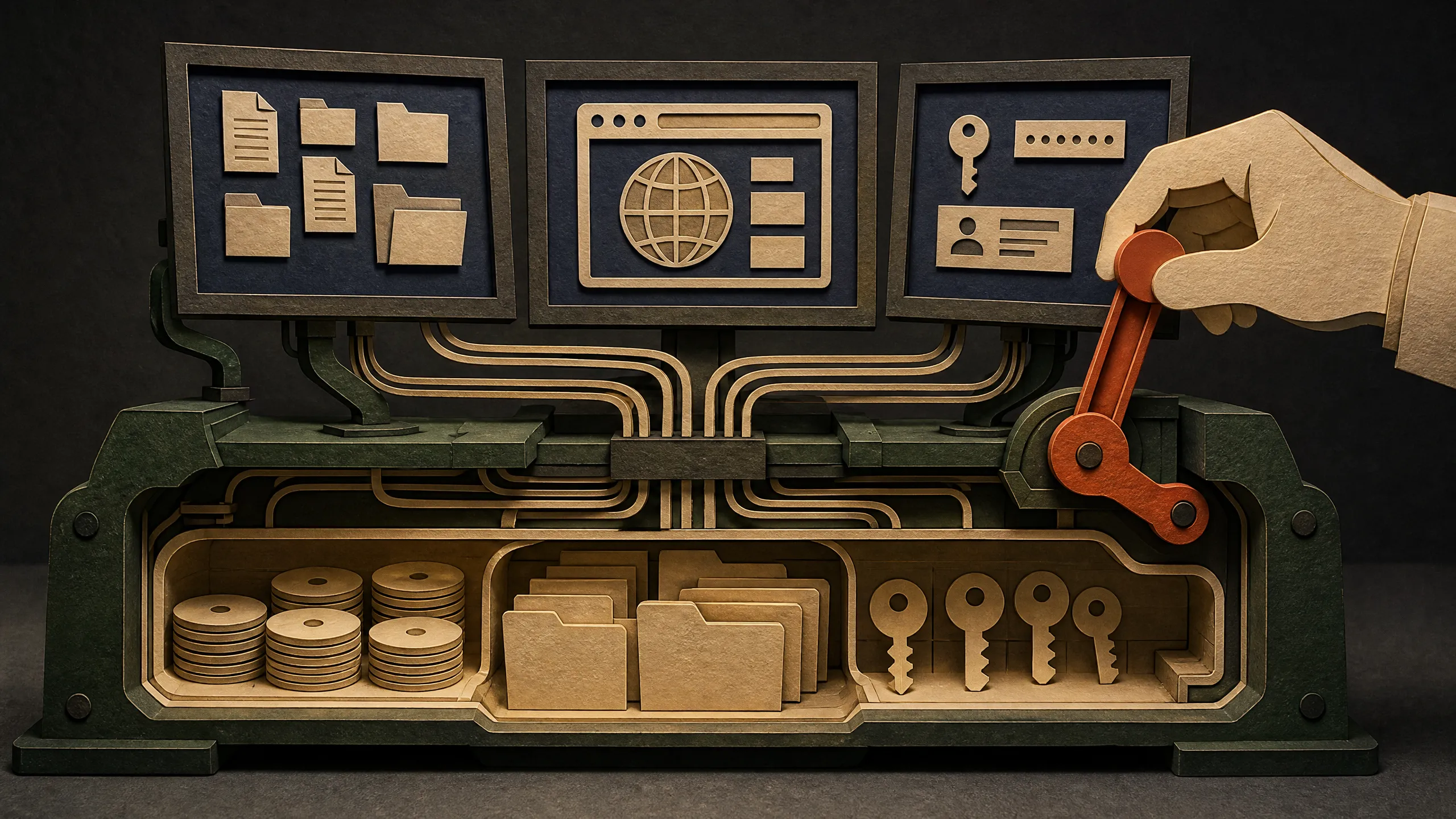
Grok Bot works from a persistent computer in the cloud. It has a browser, terminal, filesystem, and a shared workspace. Work can continue when you close the desktop app or shut your laptop.
The detail to remember is simple: all Bots on your account use the same cloud computer.
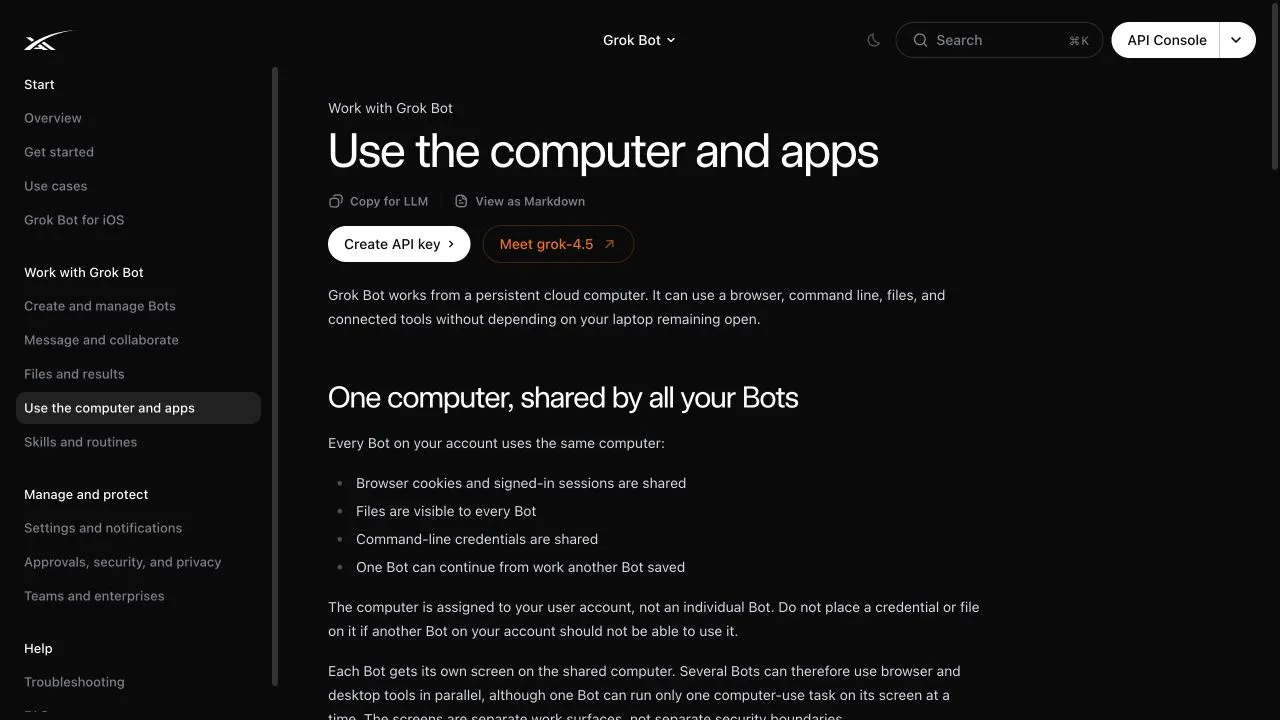
One computer, several Bot screens
The cloud computer belongs to your user account, not to an individual Bot. Every Bot can potentially reach:
- Browser cookies and signed-in sessions
- Files in the shared computer
- Command-line credentials
- Installed connectors
- Work another Bot saved
Each Bot gets a separate screen, so several Bots can use browser or desktop tools in parallel. A screen is a work surface, not an isolation boundary. One Bot can run one computer-use task on its screen at a time.
Watch a Bot work
Open Agent Computer from the conversation. The preview shows the current screen, clicks, typing, navigation, and status. You can leave the preview while the job continues.
Watching is useful during the first few runs because you can catch:
- A wrong page or account
- A search that drifted outside the allowed sources
- A form that is about to submit
- A login or verification prompt
- A loop that repeats the same failed step
Do not mistake visible activity for a correct result. Review the final deliverable and source evidence too.
Take over for sensitive steps
The Bot may ask you to take control for a password, passkey, two-factor code, CAPTCHA, payment confirmation, identity check, or site that requires a human.
- Open Agent Computer.
- Take control.
- Complete only the blocked step.
- Return control.
- Tell the Bot to continue.
Never paste a password or one-time code into ordinary chat. When a supported connection shows a secure secret request, use that masked field. The official docs say its value is excluded from the transcript and not shown to the model.
Persistent sessions change the risk
You usually sign in once because browser sessions persist. That is convenient, but the signed-in session becomes available to the rest of your Bot roster.
Use these habits:
- Begin with a test account or read-only role where possible.
- Grant only the access needed for the current workflow.
- Sign out when the service should no longer be available.
- Remove temporary sensitive files after use.
- Review active routines before changing a password or permission.
- Keep sending, purchasing, deleting, publishing, and production changes behind approval.
At 03:30, the source video shows the appeal of logging into a service while watching the Bot. That is a creator demonstration. It does not establish how every service stores credentials or whether every workflow will remain stable.
Connector or browser?
Use a connector when Grok Bot offers one for the service. Connectors appear as Plugins in the current app and often provide more reliable structured actions than clicking a changing website.
To connect one:
- Open Settings → Plugins.
- Browse the available connectors.
- Choose Add.
- Authenticate in the browser if requested.
- Type
@in chat to attach the connector to a task.
Installed connectors are account-wide. Like browser logins, they are not isolated to one Bot.
Use browser computer control when no suitable connector exists or the job depends on visual interface steps. Tell the Bot to stop if a site requests a human or blocks automation.
Work with files
The shared workspace is /workspace. Ask Bots to use clear project folders, for example:
/workspace/client-free-research/
/workspace/weekly-brief/
/workspace/receipts-test-account/
Keep important results in the workspace or attach them to the conversation. Treat temporary folders, manually installed packages, and uncommitted application state as replaceable.
Recovery and reset
When the computer has a problem, use the least destructive option first:
- Wait for active work to finish if possible.
- Use Recover computer from an unreachable-computer error.
- In Settings → Beta, use Update Agent Computer for the latest image while preserving durable state.
- Use Recover Agent Computer when offered for an unreachable machine.
- Use Reset Agent Computer only as a last resort. It returns to the latest durable snapshot and may discard recent unsaved work.
The cloud computer is separate from the Mac or Windows computer in front of you. Local command execution is another permission. The official default is Ask every time. Choose Never allowed unless a Bot has a clear reason to work on local files.
Exercise: observe, take over, and verify
Use a public, read-only task:
Open the three public URLs I provided.
Record each page title and last-updated date in /workspace/cloud-computer-test/results.md.
Include the source URL beside each result.
Do not sign in, submit forms, download software, or leave these domains.
Ask me to take over if any page requires human verification.
While it runs:
- Open Agent Computer and watch the first page.
- Take control once and scroll the page.
- Return control and ask the Bot to continue.
- Open the saved file.
- Verify every title, date, and link yourself.
- Ask the Bot which screen and shared folder it used.
This exercise proves the basic handoff without granting an account login.
Sources and unsupported gaps
- Official Use the computer and apps guide, updated August 11, 2026
- Official Grok Bot overview
- Official approvals, security, and privacy guide
- Alex Finn video at 01:25 and 03:30, used as creator observation
The public documentation reviewed for this lesson did not state the cloud VM’s operating system, CPU and memory allocation, storage quota, takeover latency, or a numerical uptime guarantee. Do not invent those details.
What’s next
Once you can supervise the computer safely, the next course lesson can turn a demonstrated workflow into a reusable skill or routine.