Grok Bot · Tutorial 11
Grok Bot on iPhone: Monitor Work and Take Control
Use Grok Bot on iPhone to start work, review results, handle approvals, and take over the shared cloud computer safely.
0 of 14 complete
Last tested and updated: August 12, 2026
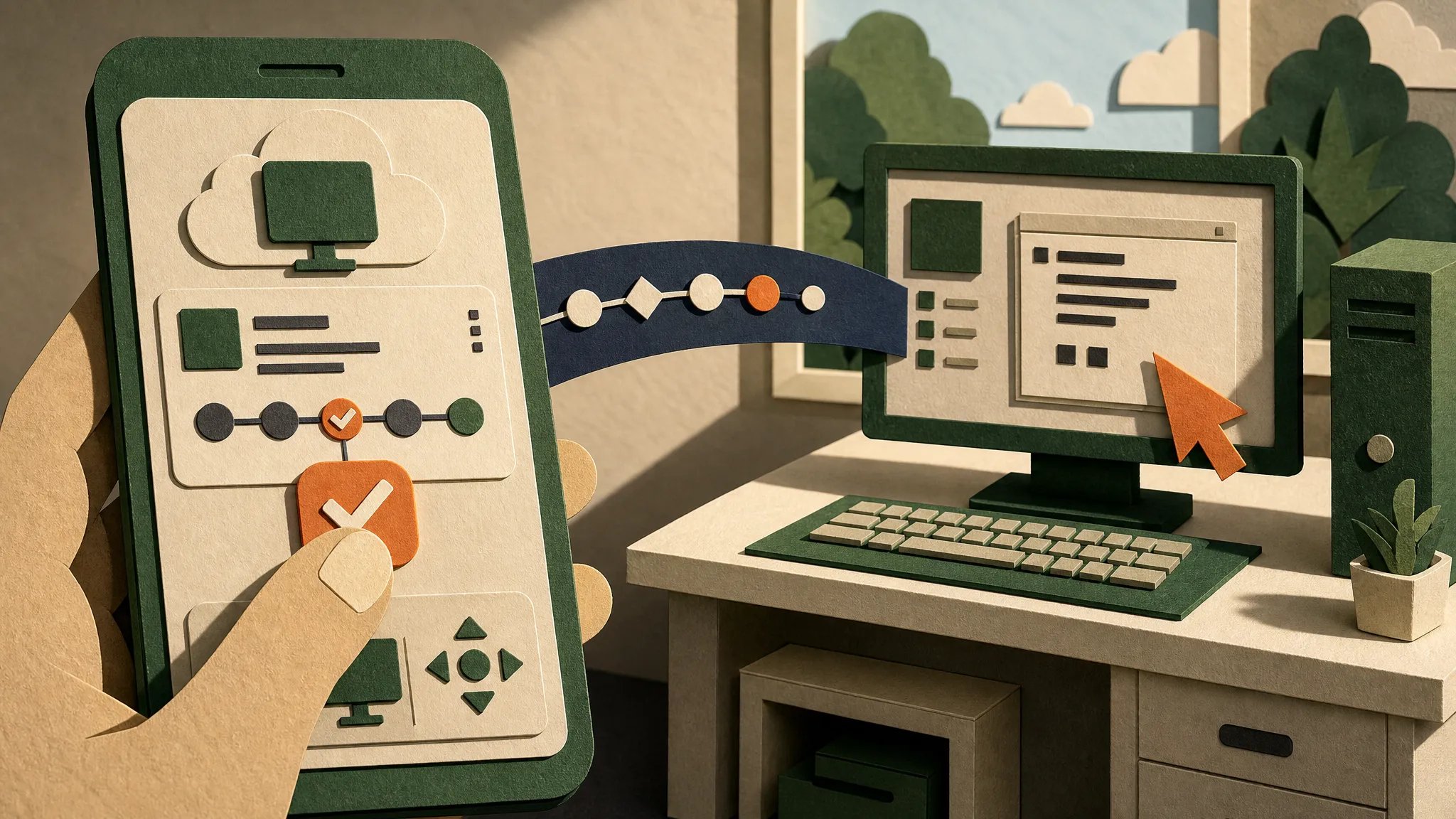
The Grok Bot iPhone app is a companion to the desktop app. It connects to the same Bots, conversations, routines, connectors, and shared cloud computer. You can start a task on your phone, close the app, and return later because the work runs in the cloud.
That does not make the phone a complete replacement for desktop. You can monitor work and intervene from iPhone, but editing a routine, inspecting run history, testing a routine, deleting a routine, and teaching a workflow by demonstration still require the desktop app.
By the end of this lesson, you will be able to:
- Install and sign in to Grok Bot on a supported iPhone.
- Start a task and recognize when a Bot needs your attention.
- Watch a Bot’s computer screen and take control for a sensitive step.
- Pause or resume a routine without accidentally changing its instructions.
- Know when to put the phone down and finish the job on desktop.

Source: xAI’s official Grok Bot for iOS guide, captured August 12, 2026. Product availability and controls can change during rollout.
Check the requirements first
The official documentation lists three requirements:
- An iPhone running iOS 18 or later.
- An eligible account on SuperGrok Heavy, Cursor Ultra, or Cursor Teams Premium.
- An internet connection.
Grok Bot is not currently designed for Android or iPad. The supported mobile app is Grok Bot for iPhone on the App Store. Sign-in goes through Cursor, even if the plan name that gave you access includes Grok.
Sign in and find your Bots
- Install Grok Bot from the official App Store link.
- Open the app and choose Login with Cursor.
- Complete authentication in the browser.
- Return to Grok Bot.
- Allow notifications if you want alerts for results, questions, and approvals.
New users see a first-run tour while the shared computer is prepared. Existing users should see the same Bot list and conversations they use on desktop. If the list is empty, check that you used the same Cursor account before creating another Bot.
Push notifications are still rolling out. When push is unavailable, the app still shows attention states inside the Bot list. Look for a Bot that needs approval, has asked a question, or has finished a result.
Give a mobile-friendly task
Short, reviewable tasks work well from a phone. Include the result, source, and stopping point in one message:
Review the three links in this message. Return a five-bullet briefing with a source link after every bullet. Do not publish or send anything. Ask me if a source is unavailable.
From a conversation, the iPhone app can send text, dictate a message, attach a photo or file, mention another Bot, reply in a thread, and react to a message. Drafts stay with the conversation if you navigate away.
Use a group chat only when more than one Bot has a clear job. A simple handoff might assign one Bot to gather sources and another to check the result. Keep one owner for the final deliverable so two Bots do not produce competing versions.
Watch the computer without taking over
Open the computer from the Bot’s conversation. You can watch browser and desktop work, inspect the current screen, and see whether the Bot is waiting for you.
There is one important boundary: every Bot on your account uses the same persistent cloud computer. Each Bot gets a separate screen, but files, browser sessions, and logins are shared. A Bot screen is a work surface, not a security boundary.
The source video describes watching and taking over a computer from mobile at 07:37. The presenter calls the mobile experience equivalent to desktop. Current xAI documentation is more precise: core monitoring and approvals are mobile, while several routine and teaching controls remain desktop-only.
Take control for the sensitive step
Take over when a site asks for a password, passkey, two-factor code, CAPTCHA, payment confirmation, or another human-only check.
- Open the Bot’s computer.
- Choose the takeover control.
- Complete only the blocked step.
- Return control to the Bot.
- Send a short message such as:
Login is complete. Continue, but stop before sending.
Do not paste a password or one-time code into the conversation. The source video shows the idea of signing into a service while watching the agent at 03:30. It does not prove that every service permits automated access, nor does it show a completed video-editing job.
Manage routines from your phone
Open a Bot’s profile and choose its routines. On iPhone you can review the schedule, next run, and instruction. You can also pause or resume the routine with Active.
Use desktop when you need to:
- Change the schedule or instruction.
- View previous runs.
- Run a test.
- Delete a routine.
- Teach a new workflow by demonstration.
Pausing is the safest mobile response when a website changes, a connector expires, or the routine starts producing unexpected results. Investigate on desktop before reactivating it.
A first mobile exercise
Try this with public, low-risk information:
- On desktop, create a Bot called Morning Reader.
- On iPhone, ask it to summarize two public articles and preserve the links.
- Close the app for five minutes.
- Reopen Grok Bot and check the attention state.
- Open the computer preview and inspect what the Bot is doing.
- If it requests a consequential action, deny it. The task only asked for a summary.
- Review the result and open both source links yourself.
A successful result contains two working sources, a concise summary, and no external action. If the Bot cannot reach a source, it should say so rather than filling the gap from memory.
Mobile troubleshooting
| Problem | What to check |
|---|---|
| Your Bots do not appear | Confirm that mobile and desktop use the same Cursor account. |
| Work seems to stop after closing the app | Reopen the conversation. Cloud work should continue, but a Bot may be waiting for a question or approval. |
| No push alert arrives | Check iOS notification permission and the Bot’s notification setting. Push delivery may not be enabled for every account yet. |
| You cannot edit a routine | Editing, testing, history, and deletion currently require desktop. |
| You cannot find Teach a task | Teach-by-demonstration is a desktop feature and may also be rolling out gradually. |
| Android or iPad install is unavailable | Those platforms are not supported at the initial launch documented in August 2026. |
Mobile readiness checklist
- I installed the app from the official App Store listing.
- I used the same Cursor account as desktop.
- I can identify a question, approval, and finished result.
- I know how to take over and return control.
- I will enter passwords and verification codes myself.
- I understand that all Bots share the same computer sessions and files.
- I will use desktop to edit, test, or delete routines.
Sources and next lesson
- Official Grok Bot for iOS guide
- Official Grok Bot FAQ
- Official settings and notifications guide
- Source video mobile demonstration at 07:37, treated as presenter evidence rather than product documentation
Next, learn how the shared computer changes your security plan in L12: Grok Bot security, privacy, and account safety.