Case studies · Tutorial 09
Warp for Multi-Agent CLI Work: A Practical Team Setup
Turn Warp into a clear operator cockpit for parallel CLI agents using vertical tabs, Git worktrees, repeatable Tab Configs, notifications, and a final verification pass.
0 of 12 complete
Source-checked and updated: August 17, 2026. The local Warp stable build was verified as 0.2026.08.12.21.54.00; current commands and UI details were checked against Warp’s official documentation.
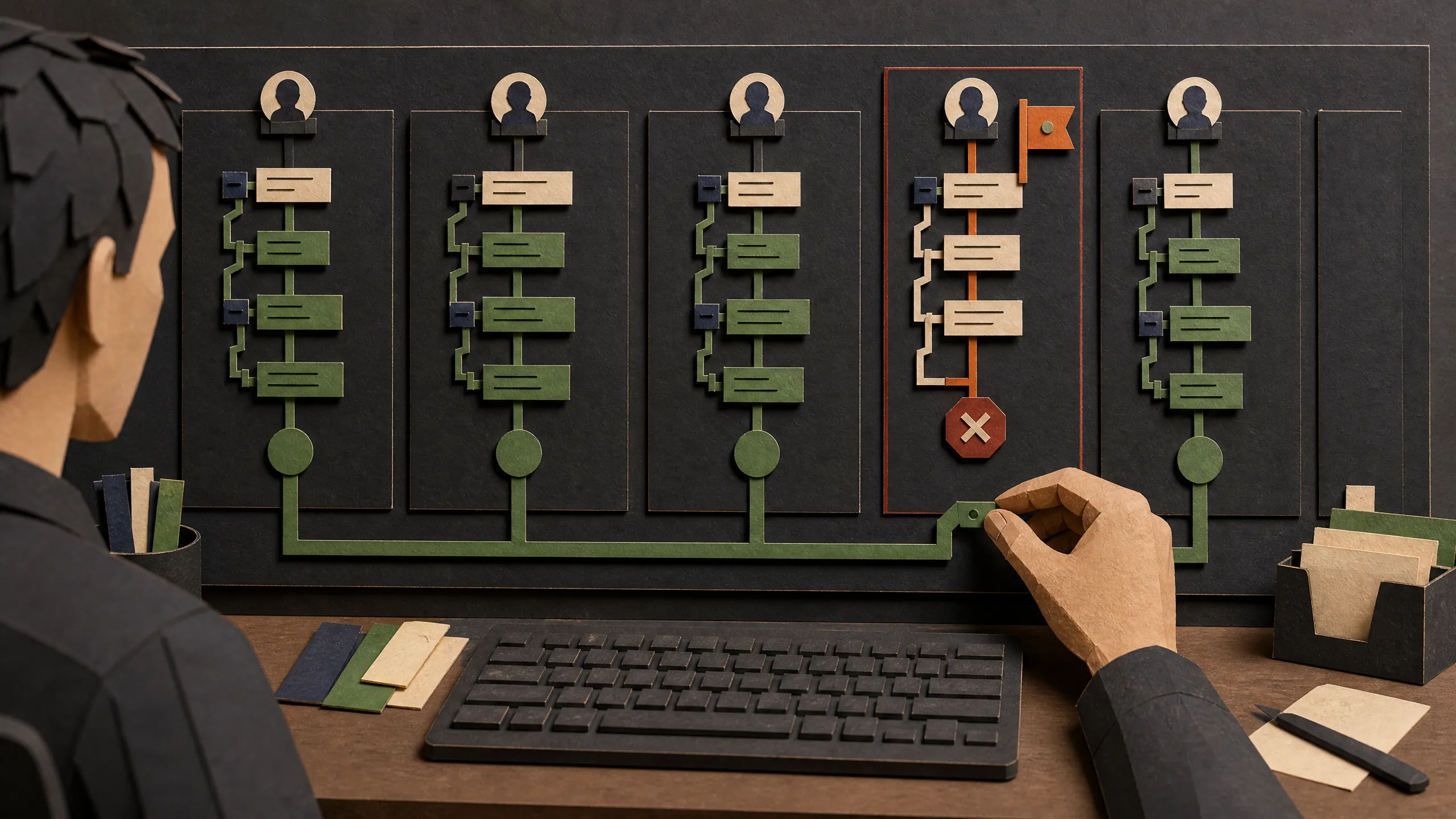
Warp is the terminal we use when several CLI agents are working at once. Its job is not to make the agents smarter. Its job is to make the work legible: one task per session, one branch per worker, obvious status, and a clean place to compare the results.
In the complete stack, Herdr keeps agent terminals persistent and observable, while Gas Town supplies tracked, separate worktrees. Warp gives the human operator one clear place to supervise those sessions.
That distinction prevents the most common multi-agent failure. A new pane looks separate, but it still points at the same files unless you give it a different working tree. Warp is the cockpit. Git worktrees or an environment manager provide the isolation. Your CLI agent provides the model and execution loop.
By the end of this lesson, you will have two agents working in separate Git worktrees, a third pane reserved for verification, and a repeatable Tab Config that opens the workspace again.
Who this is for
This is for someone who already has one terminal coding agent installed and wants to supervise two or more sessions without losing track of directories, branches, approvals, or test results.
It is not an introduction to prompting, Git, or a specific model. It also does not teach Warp’s separate Oz cloud-orchestration platform. We are using Warp as the local CLI control surface.
What you need
- A Mac, Windows PC, or Linux machine supported by Warp.
- Git and a repository with a known starting branch.
- At least one authenticated CLI coding agent. The examples use
claudeandcodex; replace either command with the agent your team uses. - A clean commit or a written record of any existing uncommitted work before creating worktrees.
- About 30 minutes for the first setup.

Figure 1: Warp’s official Terminal page captured August 17, 2026. It shows the product’s supported agent-session positioning; the tutorial below keeps file isolation and verification as separate responsibilities.
1. Install Warp and confirm the shell
On macOS, install the stable app with Homebrew:
brew install --cask warpOn Windows, use WinGet:
winget install Warp.WarpOn Debian or Ubuntu, download the current .deb package from Warp, then install that downloaded file:
sudo apt install ./warp-terminal.debWarp’s official installation page lists the current architecture and operating-system requirements. Check it before installing on an older machine.
The first app launch needs an internet connection. Creating a Warp account is optional for basic terminal use. After first launch, normal local shell work can continue offline, but AI, synchronization, and live collaboration features need a connection.
Warp currently documents Bash, Fish, Zsh, and PowerShell as supported startup shells. Open Settings → Features → Session and confirm the shell you expect. Then run a harmless check in a new tab:
printf 'shell=%s\n' "$SHELL"
pwd
git --version
Do not continue until pwd and your Git version look right. Multi-agent mistakes often begin with an invisible directory assumption.
2. Turn on the session view that shows ownership
Open Settings → Appearance → Tabs and select the vertical tab layout. Configure the tab metadata to show:
- the running agent,
- the current Git branch,
- the working directory,
- and the agent status indicator.
Vertical tabs are more useful than a row of generic terminal titles because the branch and directory become part of the control surface. If one agent is waiting for approval while another is still running, you can see that without clicking through every tab.
Use tabs for long-lived agents and split panes for closely related views, such as an agent beside its test output. Panes can be rearranged and moved between tabs, but they do not create file isolation.
3. Split the work before launching anything
Write a three-line contract for every worker:
- Ownership: files or subsystem it may change.
- Validation: exact checks it must run.
- Handoff: branch, diff, test results, and known risks it must report.
For example:
You own src/auth/ and tests/auth/.
Do not edit src/billing/ or src/api/payments/.
Run npm test -- auth and npm run typecheck before handing off.
When done, report changed files, validation results, and remaining risks.
If two tasks require edits to the same files, they are not independent. Make one agent the editor and the other a read-only reviewer, or run them sequentially.
4. Create one Git worktree per editing agent
Start from the main repository. Inspect the current state before creating anything:
git status --short
git branch --show-current
git worktree list
If the status output contains changes you do not understand, stop. Do not hide, reset, or overwrite them.
The commands below create two worktrees and two new branches from the current HEAD. Replace your-project with a short project name and use branch names that expose ownership:
git worktree add -b agent/auth-implementation ../your-project-auth-implementation
git worktree add -b agent/auth-review ../your-project-auth-review
git worktree list
Each worktree is another checkout backed by the same Git repository. The implementation agent can now edit one branch while the review agent works in another checkout.
Open one Warp tab per worktree. In each tab, verify the location before launching an agent:
pwd
git branch --show-current
git status --short
Only then start the CLI:
claudeIn the other worktree:
codexWarp recognizes many third-party CLI agents and adds an agent toolbelt. Current support includes rich input, code review, selected-code context, vertical-tab metadata, Tab Configs, and Remote Control across the recognized agents. Feature coverage changes, so check the current feature matrix before promising a specific integration.
Press Ctrl-G when you need a larger editor for a multi-line prompt. Give each agent its ownership contract before the task description.
5. Configure attention signals, not constant watching
Notifications let you leave an agent tab until it finishes, errors, or needs input. Warp currently documents notification support for Claude Code, Codex, and OpenCode; other recognized agents still get tab metadata but may not notify.
For Claude Code, Warp should show a one-click plugin installation chip. If it does not, the current manual setup is:
/plugin marketplace add warpdotdev/claude-code-warp
/plugin install warp@claude-code-warp
Those commands run inside Claude Code. The plugin needs jq. Restart Claude Code or run /reload-plugins afterward.
For Codex, use Warp’s install chip when it appears. The current manual commands are:
codex plugin marketplace add warpdotdev/codex-warp
codex plugin add warp@codex-warp
Restart Codex after installation. These plugin commands are version-sensitive; use the linked Claude Code and Codex pages if the UI or command changes.
An attention indicator is not a health check. An agent can finish the wrong task perfectly. Return to the ownership contract and validate the branch.
6. Use Blocks as receipts
Warp groups a shell command and its output into a Block. Run verification outside the agent’s full-screen interface so each check becomes a clean receipt:
git status --short
git diff --check
npm test -- auth
npm run typecheck
A command that exits non-zero receives Warp’s failure styling. You can copy the command, copy its output, search or filter a long Block, or bookmark it while the session remains open.
Do not confuse a bookmark with durable evidence. Warp’s Block bookmarks disappear when the session closes. If the result matters after the session, save it in the PR, CI system, issue, or repository notes.
Block sharing creates a server-backed link. Current Warp docs say anyone with the link can access a shared Block. Share only sanitized output, and never use a Block link as the only record of a production decision.
7. Save the workspace with a Tab Config
Warp now recommends Tab Configs for new reusable terminal layouts. They are TOML files that can set directories, startup commands, pane layouts, shells, colors, and parameters. Older Launch Configurations still work but are labeled legacy.
The easiest path is to arrange your tab, right-click it, and choose Save as new config. If you want a version you can inspect, create multi_agent_review.toml in Warp’s Tab Config directory:
- macOS:
~/.warp/tab_configs/ - Windows:
%APPDATA%\warp\Warp\data\tab_configs\ - Linux:
${XDG_DATA_HOME:-$HOME/.local/share}/warp-terminal/tab_configs/
This example creates a builder on the left, a reviewer on the upper right, and a verification shell on the lower right:
name = "Multi-Agent Review"
title = "Agents: {{task}}"
color = "cyan"

[[panes]]
id = "root"
split = "horizontal"
children = ["builder", "right_side"]

[[panes]]
id = "right_side"
split = "vertical"
children = ["reviewer", "verification"]

[[panes]]
id = "builder"
type = "terminal"
directory = "{{builder_dir}}"
commands = ["claude"]
is_focused = true

[[panes]]
id = "reviewer"
type = "terminal"
directory = "{{reviewer_dir}}"
commands = ["codex"]

[[panes]]
id = "verification"
type = "terminal"
directory = "{{repo}}"

[params.task]
type = "text"
description = "Short task label"
default = "auth-refactor"

[params.builder_dir]
type = "text"
description = "Absolute or home-relative builder worktree path"

[params.reviewer_dir]
type = "text"
description = "Absolute or home-relative reviewer worktree path"

[params.repo]
type = "repo"
description = "Main repository used for final review"
Save the file, open Warp’s + menu, and select Multi-Agent Review. Confirm every pane with pwd and git branch --show-current before assigning work.
The commands array is sequential. If its first command starts an interactive agent, a second command in that same pane will wait until the agent exits. Put tests in the verification pane instead of writing commands = ["claude", "npm test"] and expecting both to run.
8. Save repeatable checks as Workflows
A Warp Workflow is a named, searchable, parameterized shell command. It is good for “run the standard checks,” “show the branch handoff,” or “open the release logs.” It is not a dependency engine and does not decide which agent should run next.
For a new workflow, open Warp Drive → + → New workflow. Create a workflow named Verify agent branch with a command shaped for your project, for example:
cd {{worktree}} && git diff --check && npm run {{check}}Give check an enum such as test, typecheck, or lint so the user chooses an expected script rather than typing an arbitrary command. Keep deployment and deletion out of beginner workflows.
Warp still supports repository-scoped YAML workflows under .warp/workflows/, which can be useful when the setup should travel with the repository. Warp’s docs recommend Warp Drive for new workflows because editing and sharing are better integrated.
9. Fan in, validate, and merge one result at a time
Parallel work is not finished when every tab says done. It is finished when the combined branch passes the final checks.
Ask each agent for the same handoff:
Report:
1. branch and working directory,
2. changed files,
3. validation commands and exact results,
4. known risks or skipped checks,
5. recommended merge order.
Do not merge or deploy.
From the main repository, inspect the branches:
git worktree list
git diff --stat HEAD...agent/auth-implementation
git diff --stat HEAD...agent/auth-review
git diff --check HEAD...agent/auth-implementation
git diff --check HEAD...agent/auth-review
Use Warp’s Code Review panel or normal Git diffs to inspect the actual changes. Merge or cherry-pick only one branch at a time. After every integration step, run the full project validation from the final branch, not from an agent’s isolated worktree.
Do not automatically merge every agent result. If two agents solved the same problem, choose one implementation or combine them deliberately. Parallel output is a set of proposals, not a vote.
After a branch is merged or intentionally discarded, inspect its worktree one last time before removing it:
git -C ../your-project-auth-implementation status --short
git -C ../your-project-auth-review status --short
Then remove only the explicit worktrees you no longer need:
git worktree remove ../your-project-auth-implementation
git worktree remove ../your-project-auth-review
Never force-remove a worktree to silence an error before checking for uncommitted changes.
Why this setup works
| Failure pressure | Warp or Git control | What it changes |
|---|---|---|
| You cannot remember which agent owns what | Vertical tabs show agent, branch, directory, and status | Ownership stays visible |
| Parallel edits collide | Separate Git worktrees and branches | Each editor gets a different checkout |
| You watch idle terminals all day | Supported agent notifications | Attention moves to the session that needs input |
| Setup changes every time | Tab Configs and Workflows | Layout and checks become repeatable |
| “The agent said tests passed” | Verification Blocks, diffs, and a final integrated run | Claims become reviewable receipts |
The advantage is operational clarity, not magic. Warp reduces the cost of supervising several sessions. Worktrees reduce accidental file collisions. Tests and review determine whether the result is usable.
Failure handling
| Symptom | Likely cause | Recovery |
|---|---|---|
| Two agents keep overwriting the same files | Both panes point at the same checkout | Stop one agent, inspect pwd and git branch --show-current, then move it to a separate worktree |
| A tab says the wrong branch | The agent launched before directory verification | Stop, run pwd, git status --short, and git branch --show-current; do not move edits blindly |
| No notification appears | Plugin missing, agent unsupported, or Warp outdated | Update Warp, check the current feature matrix, and use the official install chip or agent-specific plugin guide |
A command after claude, codex, or ssh never runs in a Tab Config | Startup commands wait sequentially; the interactive command has not exited | Put follow-up commands in another pane or run them after the agent exits |
| Tab Config does not appear | Wrong platform directory or invalid TOML | Use the documented tab_configs path, snake_case filename, and validate the schema against the current docs |
| Restored tabs look present but agents are gone | Session restoration restores UI and recent Blocks, not killed processes | Relaunch the agent and re-check its worktree before continuing |
| Background logs are mixed together | Multiple processes are writing into one pane | Give long-running processes separate panes; Warp documents that background output can interleave |
| Worktree removal fails | The worktree is active, locked, or contains changes | Inspect status and running processes; preserve the work before trying again |
| A shared Block exposes a token or private path | Sharing uploaded the selected content and produced a link | Unshare it in Warp, rotate exposed credentials, and replace the screenshot or evidence record |
Privacy and security boundaries
Use Warp’s Settings → Privacy page before recording or sharing a session:
- Disable telemetry and crash reporting if that is your team’s policy.
- Enable Secret Redaction manually and add patterns for your environment.
- Treat redaction as a backstop, not a secret manager.
- Treat Session Sharing and Remote Control like screen sharing. Warp’s redaction docs say Session Sharing does not apply Secret Redaction.
- Remember that session restoration stores recent terminal Blocks in a local SQLite database.
- Do not save API keys in a Tab Config, Workflow, screenshot, shell history, or repository file.
- Use dynamic Warp Drive variables backed by an external secret manager when appropriate. Warp explicitly says static Drive variables are not a replacement for one.
- Keep high-risk actions—deployment, destructive database changes, credential rotation, billing, or publishing—behind a human confirmation step.
Warp’s own Agent Profiles control Warp Agent and Oz behavior. A Claude Code, Codex, Hermes, or other third-party CLI process retains its own permission and sandbox settings. Configure both layers when you use both; do not assume one policy silently governs the other.
Do this today
- Enable vertical tabs and show agent, branch, directory, and status metadata.
- Create two clearly named worktrees from a clean starting point.
- Give each agent a written ownership, validation, and handoff contract.
- Run one failing and one passing verification command so you can recognize the Blocks.
- Save the working layout as a Tab Config and reopen it once.
- Review privacy, Secret Redaction, sharing, and local session-restoration settings.
Success criteria
You have a working Warp multi-agent cockpit when all of these are true:
- every editing agent shows a different working directory and branch;
- no two agents own the same files at the same time;
- the correct sessions surface attention requests;
- each handoff includes changed files, exact validation results, and risks;
- the final integrated branch passes the complete test suite;
- closing and reopening the Tab Config recreates the intended layout without storing a secret.
FAQ
Does opening another Warp pane isolate an agent?
No. A pane is another terminal session, not a container or separate checkout. Point it at a different Git worktree for file isolation. Use a stronger environment boundary when credentials, processes, or network access must also be isolated.
Should I use tabs or panes for multiple agents?
Use tabs for agents you monitor over a longer period, especially with vertical-tab metadata and notifications. Use panes when two views need to stay visible together, such as an agent and its test runner. Either layout still needs separate worktrees for simultaneous editing.
Are Launch Configurations the same as Tab Configs?
No. Launch Configurations are the older YAML-based session format and are now marked legacy. Existing configurations still work. Tab Configs use TOML and are the recommended format for new reusable tabs and pane layouts.
Does Warp choose or route the model used by Claude Code or Codex?
Not when Warp is acting only as the terminal. The third-party CLI agent controls its own provider, model, permissions, and usage. Warp’s native Agent and Oz platform are separate products with their own model and orchestration settings.
Can I use Warp without an account?
Basic terminal use can skip account creation. The app needs internet the first time it opens. Features that depend on AI, synchronization, cloud state, or live collaboration need connectivity and may require an account or plan.
Does session restoration keep an agent running after Warp quits?
No. Restoration brings back windows, tabs, panes, and recent Blocks. Quitting Warp ends local processes. Use a proper remote host, process manager, or cloud-agent system for unattended work.